
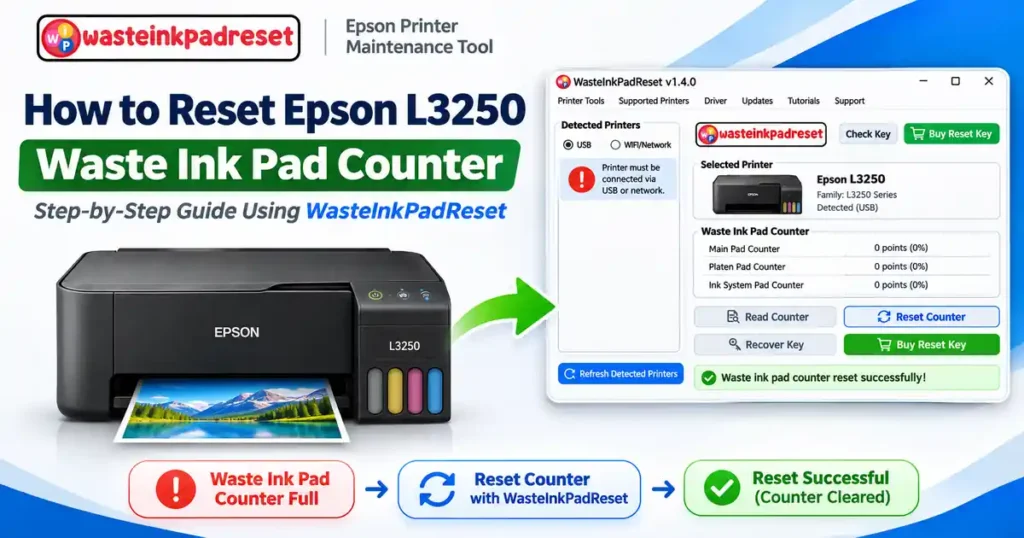
Is your Epson L3250 printer showing a “Service Required” or “Ink Pad is at the End of Its Service Life” error? Don’t worry! This guide will help you understand the problem and learn how to reset the Epson L3250 waste ink pad counter using WasteInkPadReset.
With a few simple steps, you can check your printer’s waste ink counter and perform a reset when appropriate.
Why Does the Epson L3250 Show a Waste Ink Pad Error?
Your Epson L3250 has internal waste ink pads that collect excess ink during printing and printhead cleaning.
Over time, the printer estimates how much waste ink has accumulated. When the waste ink counter reaches its limit, the printer may stop printing and display a service warning.
Common warning signs include:
- “A printer’s ink pad is at the end of its service life.”
- “Service Required.”
- The ink and paper indicator lights flashing.
- The printer refusing to print because maintenance is required.
The solution: The waste ink pads should be inspected and serviced as necessary. After proper maintenance, a compatible reset utility can clear the waste ink counter.
How to Reset Epson L3250 Waste Ink Pad Counter Using WasteInkPadReset
WasteInkPadReset is a printer maintenance utility designed to read and reset waste ink pad counters on supported Epson printers.
Follow these simple steps.
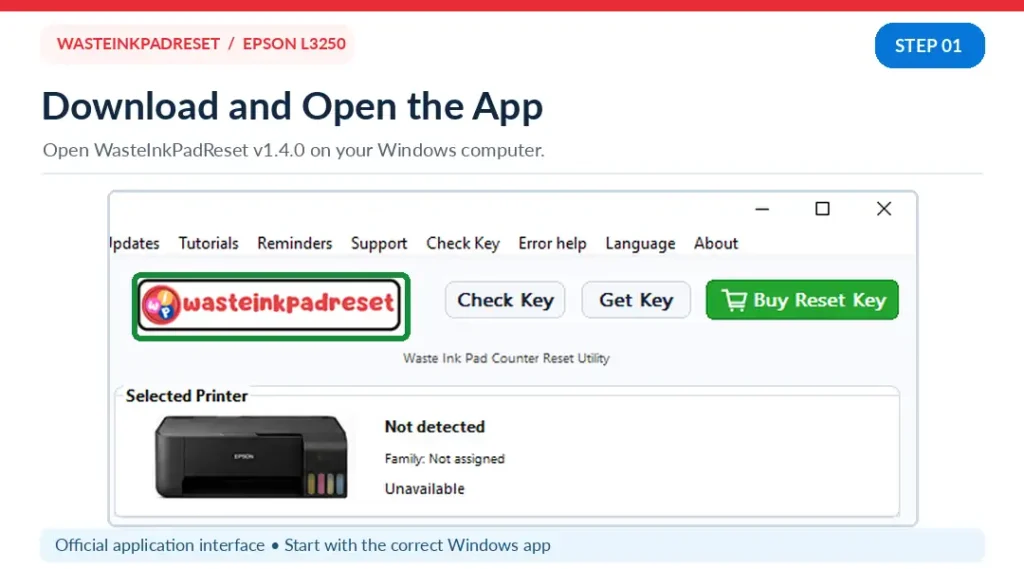
Step 1: Download and Open WasteInkPadReset
Download the WasteInkPadReset application from its official website.
Install or open the software on your Windows computer.
Make sure your Epson L3250 printer is turned on.
Step 2: Connect Your Epson L3250 Printer
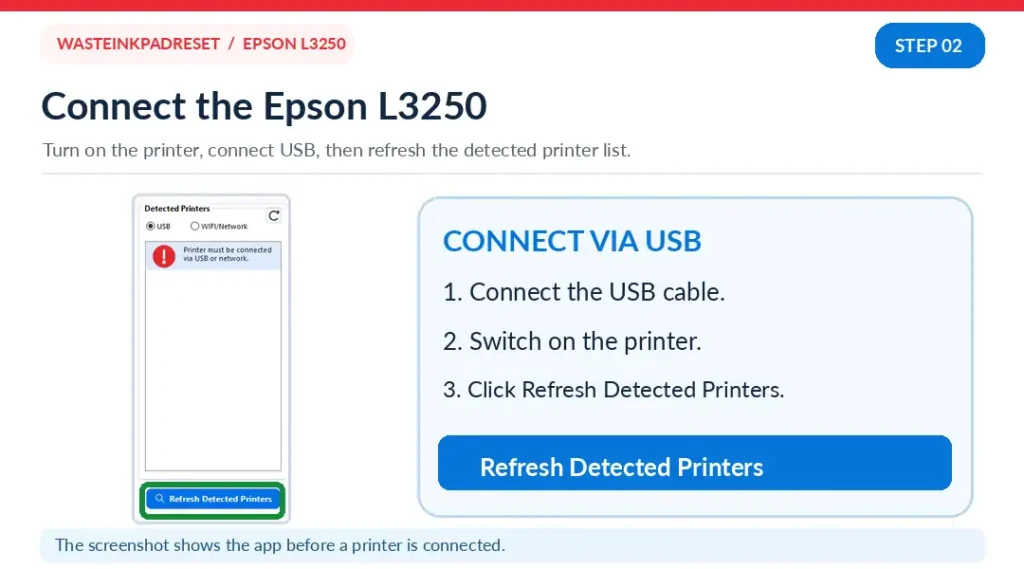
Connect your printer to your computer using a USB cable.
Open WasteInkPadReset and click Refresh Detected Printers.
Wait for your Epson L3250 to appear in the detected printer list. Select the correct printer before continuing.
Step 3: Read the Waste Ink Pad Counter
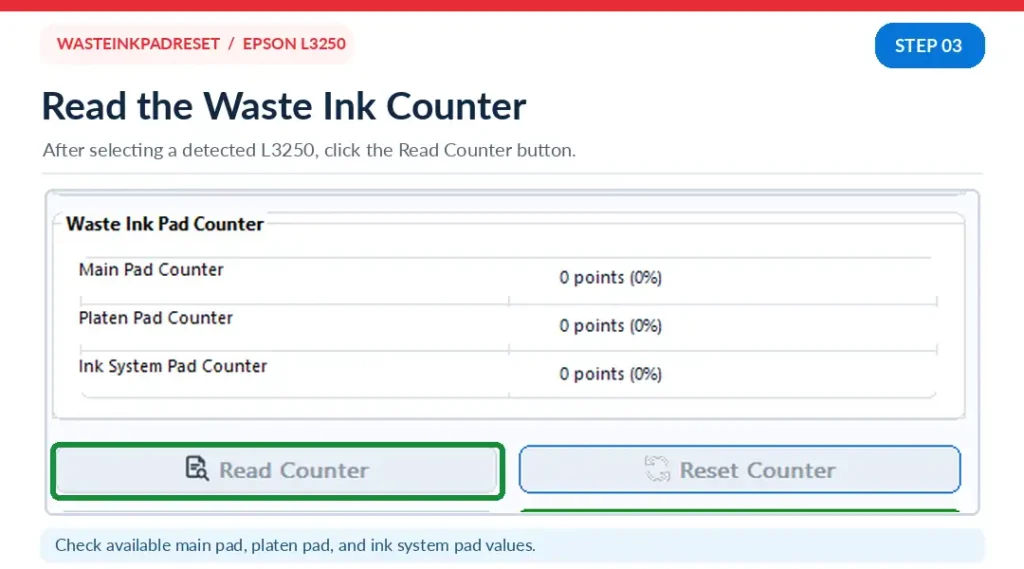
Once your printer is detected, click Read Counter.
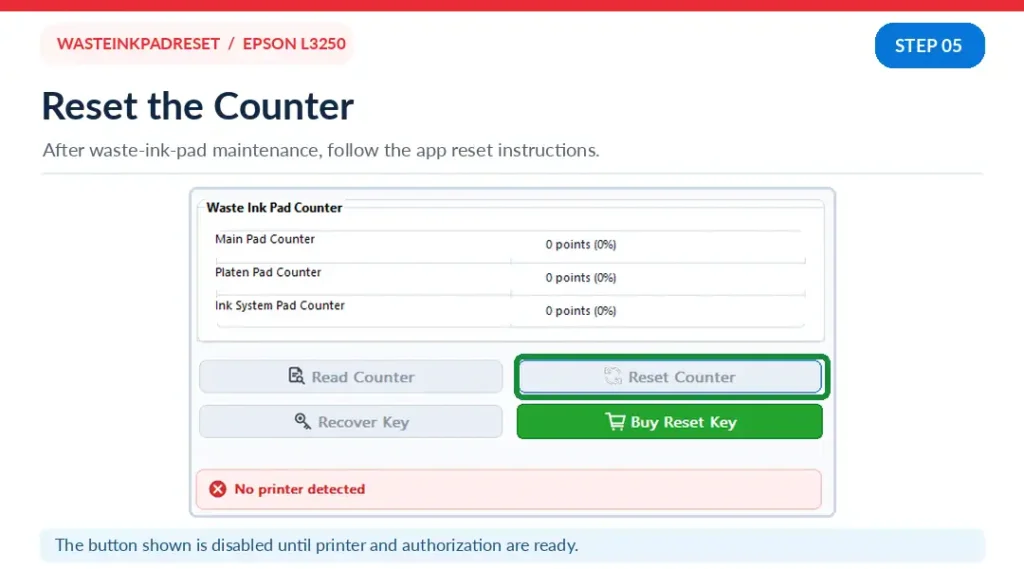
The application will attempt to display the available waste ink counter values, including:
- Main Pad Counter
- Platen Pad Counter
- Ink System Pad Counter
These values help you identify the printer’s maintenance counter status.
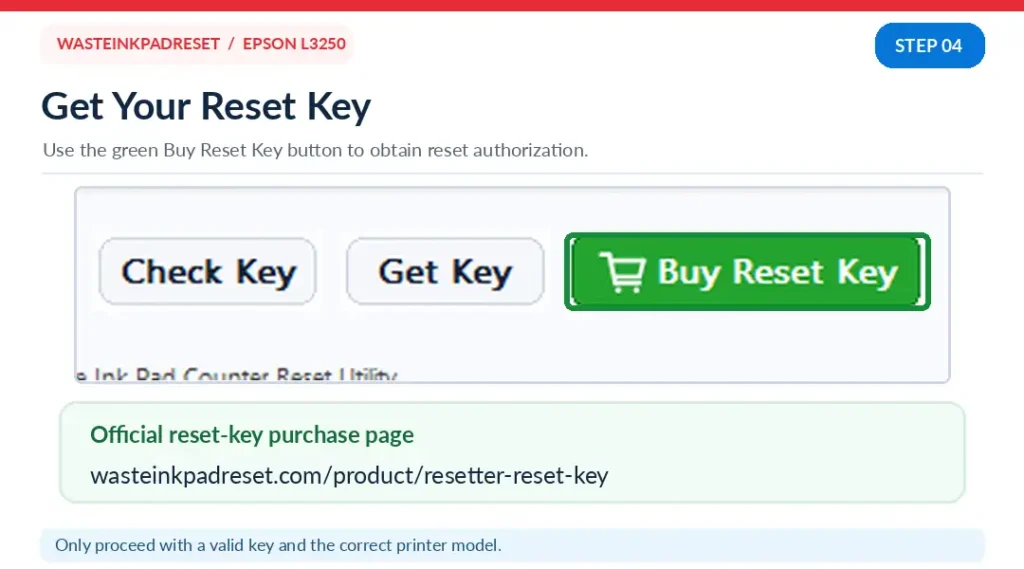
Step 4: Get Your Reset Key
To authorize a counter reset, you will need a valid WasteInkPadReset reset key.
Click Buy Reset Key inside the application, or visit the purchase page:
Get Your WasteInkPadReset Reset Key
Follow the instructions to obtain and use your reset key.
Step 5: Reset the Waste Ink Pad Counter
After the waste ink pads have been properly serviced and your reset key is ready:
- Select your Epson L3250 printer.
- Click Reset Counter.
- Follow the application’s authorization instructions.
- Wait for the reset process to finish.
- Restart your printer if instructed.
Once completed successfully, read the counter again to verify the result.
Important: Resetting the waste ink counter does not physically clean or replace the waste ink pads. If the pads are saturated, have them serviced to prevent ink leakage or further problems.
Why Choose WasteInkPadReset?
WasteInkPadReset is designed to make printer counter maintenance more convenient.
Here are some useful features:
- Simple interface: Easy-to-find Read Counter and Reset Counter buttons.
- Printer detection: Find supported printers connected to your computer.
- Counter monitoring: Check available waste ink counter values.
- Reset key authorization: Use a valid key to authorize the reset process.
- Helpful for technicians and printer owners: Follow a guided counter reset process without navigating complicated service menus.
Frequently Asked Questions
Can I reset my Epson L3250 waste ink pad counter?
Yes. The Epson L3250 waste ink counter can be reset using compatible service software, provided the printer and reset procedure are supported. The waste ink pads still need appropriate physical maintenance.
Do I need a reset key?
Yes. WasteInkPadReset requires a valid reset key to authorize the reset function.
Can I reset the Epson L3250 using a USB cable?
Yes. A direct USB connection is a practical option for detecting and communicating with the printer.
Will resetting the counter fix every Epson L3250 error?
No. A waste ink counter reset is intended for the relevant maintenance counter. Paper jams, hardware failures, scanner errors, and other problems require different solutions.
Final Thoughts
A waste ink pad warning doesn’t always mean you need a new printer.
With proper maintenance and the right utility, you may be able to keep using your Epson L3250 without replacing the entire machine.
Ready to check your Epson L3250 waste ink pad counter?
Try WasteInkPadReset and follow the simple reset procedure for supported printers.
Get Your Reset Key and Start Using WasteInkPadReset
WasteInkPadReset is an independent printer maintenance utility and is not affiliated with or endorsed by Epson.